
CCTV help
CCTV troubleshooter
Most CCTV faults come down to power, cables, storage or the network, and many can be fixed in minutes. Answer three questions, then follow the checks for your problem.
Start here
Three questions
01
Is it one camera, or all of them?
One camera: the camera, its cable or its port. All cameras: the recorder, the switch or the power.
02
What kind of system is it?
Network cable to each camera: an IP system with an NVR. Round coax cable (BNC plugs): an analogue system with a DVR. The checks below work for both.
03
What changed recently?
A power cut, storm, new equipment, moved cables or a changed password explain most sudden faults.
What are you seeing? Choose your problem:
- 1. One camera shows no picture
- 2. Several or all cameras go off at once
- 3. Camera works by day but is black at night
- 4. Night picture is hazy, white or full of glare
- 5. Picture is blurry, foggy or spotted
- 6. System is not recording, or footage is missing
- 7. Hard drive error, “No disk” or “Storage full”
- 8. Can’t see the cameras on my phone (app shows offline)
- 9. Video freezes, lags or cameras keep dropping off
- 10. Problems after a power cut or storm
Before anything else
Three quick checks that fix many problems
- Restart the system. Unplug the recorder and the PoE switch for 10 seconds, then plug the switch in first and the recorder second.
- Check the power. Make sure the UPS and power boards are on, and nothing has been unplugged.
- Check the cables. Push every network and power plug firmly into place at the recorder, switch and cameras.
Safety first: switch off power before handling cables, and use a licensed electrician for any electrical work.
Where problems start
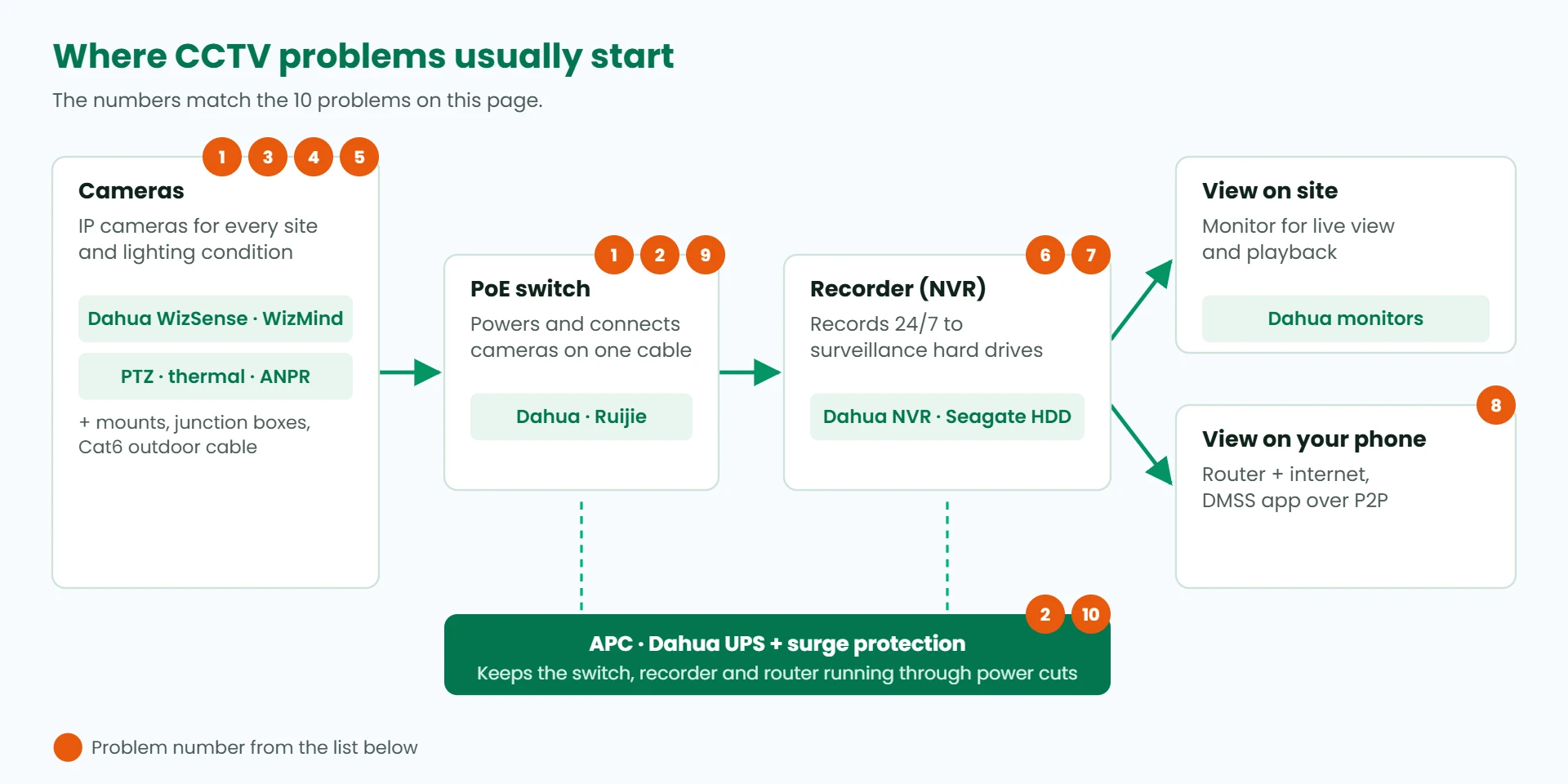
The 10 most common CCTV problems
Find your problem and follow the checks
1. One camera shows no picture
Likely causes: A loose or damaged cable, a failed PoE port or power adapter, a changed IP address, or a faulty camera.
What to check
- Cover the lens with your hand in a dim spot. If the small red infrared lights glow, the camera has power.
- Unplug and firmly reconnect the network cable at both ends, then try a different port on the switch or recorder.
- Swap in a cable you know works, or plug a working camera into this cable. This tells you whether the cable or the camera is at fault.
- If the camera has its own power adapter, test it with an adapter from a working camera.
- On the recorder, open Camera > Registration. If the camera shows offline or a new IP address, add it again.
Products that help: Cat6 outdoor cable and connectors, PoE switches and injectors, replacement cameras. Ask us for a quote →
2. Several or all cameras go off at once
Likely causes: The PoE switch or recorder has failed or is overloaded, the UPS or a shared power supply has failed, or there has been a power cut.
What to check
- Check the switch and recorder are on and their port lights are lit.
- Restart the PoE switch first, then the recorder (unplug for 10 seconds).
- Check the UPS: is it beeping, on battery, or showing a fault?
- Add up the power your cameras need. It must stay under the switch or recorder PoE budget, especially at night when infrared is on.
- Think about recent changes: a new device plugged in, or cables moved.
Products that help: PoE switches with a larger power budget, UPS units, surge protectors. Ask us for a quote →
3. Camera works by day but is black at night
Likely causes: Infrared lights draw extra power at night, so a weak power supply or a long cable run shows up after dark. Infrared may also be switched off.
What to check
- Cover the lens in daylight. A faint red glow means the infrared lights are working.
- Move the camera to another PoE port or a stronger power supply.
- In the camera settings, set Day/Night or IR mode to Auto.
- Keep PoE cable runs under 100 metres.
Products that help: PoE switches, external infrared illuminators, full-colour night cameras. Ask us for a quote →
4. Night picture is hazy, white or full of glare
Likely causes: Infrared light is bouncing back off the dome cover, a nearby wall, eave or gutter, a dirty lens, or spider webs.
What to check
- Clean the lens or dome with a soft cloth and remove spider webs. Insects are drawn to the infrared light.
- Check the foam or rubber ring around the lens sits firmly against the dome glass.
- Angle the camera away from walls, eaves and gutters close to the lens.
- Under low eaves, a turret or bullet camera usually works better than a dome.
Products that help: Turret and bullet cameras, replacement dome covers. Ask us for a quote →
5. Picture is blurry, foggy or spotted
Likely causes: Dirt or water on the lens, condensation inside the housing (common in our humid climate), a knocked lens, or a lowered video quality setting.
What to check
- Clean the outside of the lens.
- If the fog is inside the housing, the seal has failed. Move the camera to a sheltered spot or replace it.
- For varifocal or motorised cameras, run auto-focus again from the recorder.
- Check the recording resolution and bitrate have not been turned down.
Products that help: IP67 weatherproof cameras, sun and rain hoods. Ask us for a quote →
6. System is not recording, or footage is missing
Likely causes: The recording schedule is off or set to motion only, the hard drive is full and not overwriting, or the date and time are wrong.
What to check
- On the recorder, open Storage > Schedule and make sure every camera records on every day.
- Turn on Overwrite, so the oldest footage is replaced when the drive is full.
- Check the date, time and time zone (Port Moresby is UTC+10), and turn on automatic time (NTP).
- Search playback by the correct camera and date.
Products that help: Larger surveillance hard drives. Ask us for a quote →
7. Hard drive error, “No disk” or “Storage full”
Likely causes: The drive has failed or was never initialised, a desktop drive was used instead of a surveillance drive, or power cuts have damaged it.
What to check
- Open Storage > HDD Manager. The status should read Normal.
- A new drive must be initialised (formatted) on the recorder first. This erases it.
- Listen for clicking or grinding. That usually means the drive is failing.
- Restart the recorder. If the error returns, export any footage you need, then replace the drive with a surveillance-rated one.
Products that help: Seagate SkyHawk surveillance hard drives, APC and Dahua UPS units. Ask us for a quote →
8. Can’t see the cameras on my phone (app shows offline)
Likely causes: The internet at the site is down, the recorder is not connected to the router, P2P is turned off, a password was changed, or the app is out of date.
What to check
- Check the internet is working at the site.
- On the recorder, open Network > P2P. The status should read Online.
- Update the DMSS app, then add the recorder again by scanning the QR code in the P2P menu.
- If someone changed the recorder password, update it in the app.
- On Starlink and most mobile internet, port forwarding does not work. Use P2P instead.
Products that help: Routers and 4G backup routers. Ask us for a quote →
9. Video freezes, lags or cameras keep dropping off
Likely causes: Two devices using the same IP address, an overloaded or shared network, a damaged cable, a weak Wi-Fi signal, or equipment overheating.
What to check
- Make sure no two devices share the same IP address. Cameras on the recorder’s own PoE ports are managed automatically.
- Use the sub-stream for phone viewing and multi-camera screens.
- Keep the switch and recorder out of direct sun and hot, closed cabinets.
- For Wi-Fi cameras, check the signal strength or change to a cabled camera.
Products that help: Managed PoE switches, Cat6 cable, network cabinets with ventilation. Ask us for a quote →
10. Problems after a power cut or storm
Likely causes: Surges and lightning damage ports and cameras, and repeated outages corrupt drives and reset the clock.
What to check
- When power returns, check the date and time are correct.
- Check every camera has a picture. A surge often kills a single PoE port or camera.
- Put the recorder, switch and router on a UPS.
- Add surge protection, especially on long outdoor cable runs, and have an electrician check the earthing.
Products that help: UPS units, surge protectors, PoE surge protectors. Ask us for a quote →
Still not working?
Send us the camera or recorder model, what you see on screen, and a photo if you can. Our technical team will point you to the fix or the part you need. If a product bought from PISC Tech is faulty, we handle the warranty claim locally.
Need installation? We can refer you to a certified partner installer.